
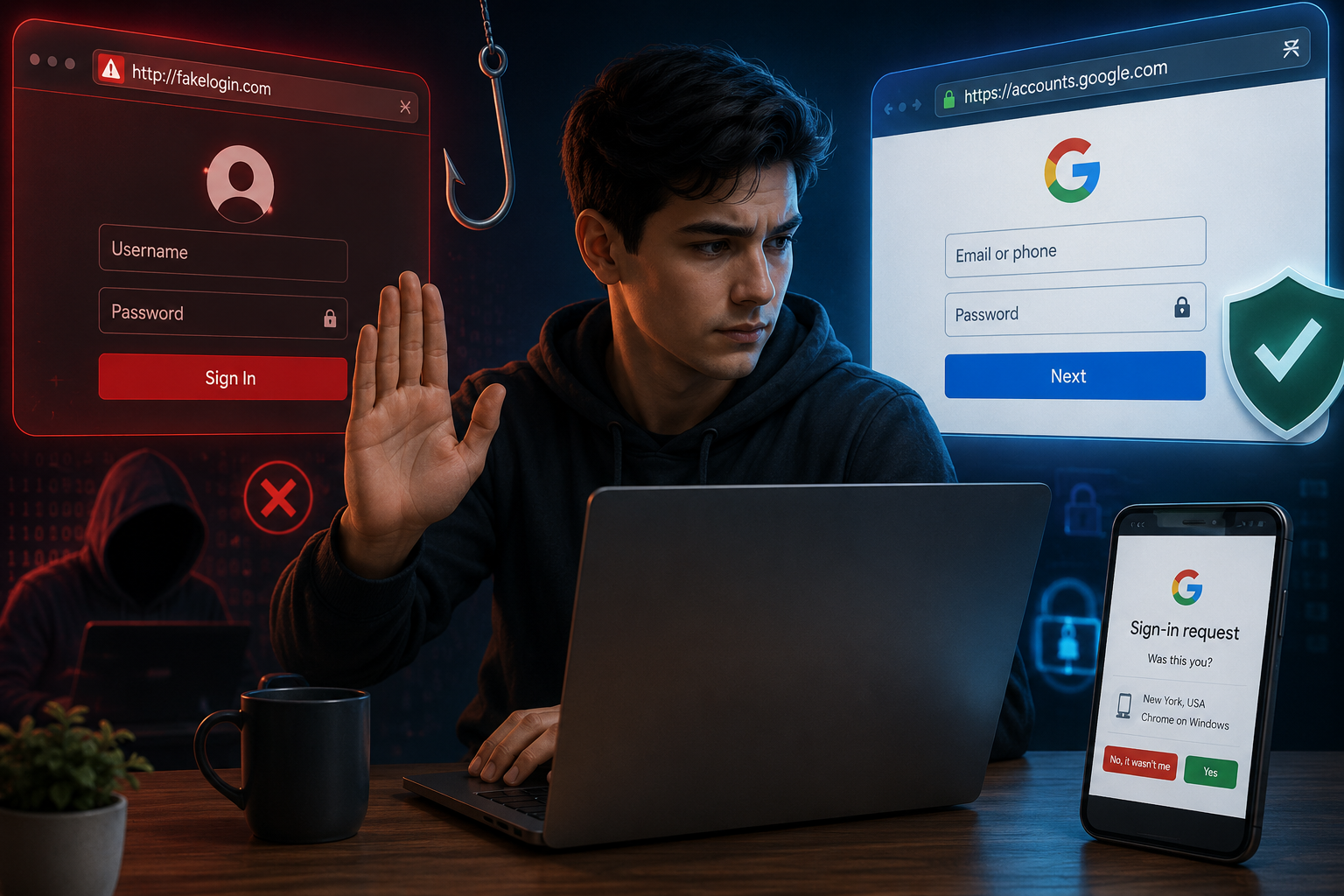
Most people do not lose access to their accounts because their passwords were weak. They lost it because they entered that password in the wrong place.
Fake login pages have become one of the most effective online scams because they look ordinary. A message says your email needs verification, your bank account requires urgent action, or your cloud storage session has expired. The page looks familiar, the logo is correct, and the sign-in form feels normal. That small moment of trust is exactly what attackers rely on.
These scams now target more than just obvious spam emails with poor grammar. Many phishing attempts now look polished, professional, and convincing enough to fool careful users—especially when they arrive during busy workdays or on mobile devices where details are easier to miss.
Suspicious sign-in requests also appear through text messages, fake app notifications, browser pop-ups, and even social media messages. The goal remains consistent: to have you log in quickly before you pause to verify.
Avoiding fake login pages is not about becoming highly technical. It is about building a repeatable habit of checking before signing in. Once that habit becomes normal, most phishing attempts become much easier to spot.
This guide explains the practical steps I use to avoid fake login pages, protect important accounts, and handle unexpected sign-in requests without risking sensitive information.
Why Fake Login Pages Work So Well
Phishing scams succeed because they target attention, not technology.
Most people know they should be careful online, but attackers create situations where people react before thinking. Urgency is the main tool.
Common examples include:
- “Your account will be locked in 30 minutes”
- “Unusual sign-in detected”
- “Payment verification required immediately”
- “Password expired—sign in now”
- “Package delivery failed due to account issue”
These messages create stress and encourage swift action.
Instead of asking whether the request is real, people focus on resolving the problem quickly.
That is why awareness matters more than memorizing technical warning signs. The safest habit is slowing down before signing in anywhere.
I Never Sign In Through Unexpected Links
This is the single rule that prevents most phishing problems.
Why Direct Links Are Risky
Even if an email looks legitimate, the link inside it may lead somewhere entirely different.
A fake page can copy:
- Company logos
- Login form design
- Help center styling
- Security warnings
- Password reset screens
The appearance can be nearly identical to the real service.
What I Do Instead
If I receive a login request from:
- My bank
- Email provider
- Cloud storage account
- Shopping platform
- Social media service
- Work portal
I do not click the provided link.
Instead, I:
- Open my browser manually
- Type the website address myself
- Use a saved bookmark I trust
- Open the official app directly
This removes the biggest phishing risk immediately.
Simple Example
If a message says:
“Your email account needs urgent verification”
I never use that email link.
I go directly to the provider’s normal login page myself and check there.
That habit solves most problems before they begin.
I Always Check the Website Address Carefully
A fake login page often fails at one important detail: the real website address.
Small Differences Matter
Attackers use domains that look almost correct:
- paypaI.com instead of paypal.com
- amaz0n-login.com instead of amazon.com
- secure-bankverify.net instead of the real bank domain
On mobile screens, these differences are easy to miss.
What I Look For
Before entering login details, I check:
- The full domain name
- Strange extra words like “secure-login-update.”
- Unusual country endings
- Misspelled brand names
- Random letters or numbers
The lock icon alone is not enough.
A site can have HTTPS and still be fraudulent.
My Rule
If the address looks even slightly unusual, I leave immediately.
Doubt should stop the login—not start the password entry.
I Treat Urgent Sign-In Warnings With Extra Caution
Urgency is one of the strongest phishing signals.
Why Urgency Is Used
Attackers want speed because speed reduces verification.
When someone feels rushed, they stop checking details.
Messages often include:
- deadlines
- account suspension threats
- unusual login warnings
- payment failures
- security alerts
Some are real, but the fake ones depend on panic.
My Safer Response
I never respond emotionally.
Instead, I ask:
- Did I actually expect this message?
- Was I already trying to log in?
- Does this warning appear inside the real app too?
- Can I confirm it by visiting the official website directly?
Real services do not become safer because I click faster.
Verification matters more than urgency.
I Use Two-Factor Authentication Everywhere Important
Even careful people can make mistakes. Two-factor authentication adds a second layer of protection.
Why It Helps
If someone steals a password through a fake login page, they may still fail to access the account if a second verification step is required.
That extra step often prevents full account takeover.
Priority Accounts for 2FA
I enable it first for:
- Primary email
- Banking and payment apps
- Cloud storage
- Password manager
- Work accounts
- Social media with business access
Email is especially important because it controls password resets for many other services.
Better 2FA Methods
Authenticator apps are usually stronger than SMS codes.
Hardware security keys provide even stronger protection for highly sensitive accounts.
SMS is better than nothing, but stronger methods are preferred when available.
I Pay Attention to Login Pop-Ups and Browser Prompts
Not every fake login page comes through email.
Many phishing attempts happen inside normal browsing sessions.
Common Examples
You visit a website and suddenly see:
- “Your session expired”
- “Sign in with Google to continue”
- “Security verification required”
- “Browser infected—log in to fix”
Some are legitimate. Many are not.
My Safety Check
Before interacting, I ask:
- Was I trying to access this service?
- Does this pop-up make sense for the page I opened?
- Is it coming from the browser or from the website itself?
Unexpected login prompts deserve suspicion.
Random pop-ups should never receive important passwords.
I Avoid Logging In Through Public or Shared Devices
Even real login pages become risky on unsafe devices.
Public Computers Create Hidden Risks
Shared systems may include:
- saved browser sessions
- browser extensions
- hidden monitoring software
- remembered passwords
- incomplete logout sessions
This makes login safety harder to control.
My Rule for Public Devices
I avoid signing into:
- banking accounts
- password managers
- work dashboards
- cloud storage
on public computers whenever possible.
If access is unavoidable:
- use private browsing
- log out fully
- remove saved sessions
- avoid password saving
- change the password later if needed
Convenience should not override account security.
I Review Sign-In Alerts Instead of Ignoring Them
Many services send login alerts that users delete without reading.
That is a missed security opportunity.
Useful Alerts Include
- New device login notifications
- Password change confirmations
- Failed login attempt warnings
- Account recovery changes
- New browser session alerts
These warnings help detect real problems early.
What I Check
If I receive a login alert:
- Did I cause it?
- Does the location make sense?
- Is the device familiar?
- Was the timing expected?
If something feels wrong, I change the password immediately and review active sessions.
Fast response matters more than perfect certainty.
Common Mistakes That Make Fake Login Pages More Dangerous
Most phishing success comes from normal habits, not carelessness.
Clicking Links While Distracted
People often check messages during meetings, travel, or late at night.
That is when rushed mistakes happen.
Sensitive sign-ins deserve full attention.
Trusting Logos More Than URLs
A professional-looking page proves nothing.
Design can be copied in minutes.
The website address matters more than appearance.
Reusing the Same Password Everywhere
If one fake login captures a reused password, multiple accounts become vulnerable.
Unique passwords reduce damage.
Ignoring Small Warning Signs
Odd grammar, strange urgency, unusual sender addresses, and unexpected login prompts often appear together.
People ignore them because each detail seems small.
Security problems usually begin with small details.
Expert Recommendations for Long-Term Protection
Avoiding phishing is easier when security habits are consistent.
Use a Password Manager
A password manager helps in two useful ways:
- it stores strong unique passwords
- it often refuses to autofill on fake domains
That second feature can act as an early warning sign.
If autofill does not appear where it normally should, I stop and verify.
Keep Devices Updated
Browsers, operating systems, and security tools improve phishing protection through updates.
Delaying updates weakens that protection.
Separate Work and Personal Logins
Mixing accounts increases confusion and risk.
Separate browser profiles or separate devices make suspicious requests easier to notice.
Teach Family Members the Same Habits
Shared household security matters.
One compromised family email account can affect shared subscriptions, payment accounts, and stored documents.
Security habits work better when everyone uses them.
Practical Checklist I Follow Before Any Login
Before entering a password, I quickly check:
- Did I open this site intentionally?
- Did I type the address myself?
- Does the domain look exactly correct?
- Is the login request expected?
- Is there unusual urgency or pressure?
- Does my password manager recognize the site?
- Am I on a trusted device?
- Is two-factor authentication enabled for this account?
If even one answer feels uncertain, I stop.
Stopping for thirty seconds is better than recovering an account for thirty days.
FAQ
Can fake login pages still have the padlock icon?
Yes. HTTPS and the lock icon only show that the connection is encrypted. They do not prove the website is legitimate. Always check the full domain name, not just the padlock.
What should I do if I entered my password on a suspicious page?
Change the password immediately from the real website, enable or review two-factor authentication, check active sessions, and review recovery settings. If the same password was reused elsewhere, change those accounts too.
Are text message login warnings safer than email alerts?
Not always. SMS phishing is very common. Suspicious sign-in requests through text messages should be treated with the same caution as email links.
Is browser autofill safe to use?
On personal trusted devices, yes—especially when combined with a password manager. It can even help identify fake sites if autofill does not appear where it normally should.
Should I trust “Sign in with Google” or similar buttons?
Only when the request makes sense and comes from a trusted service you intentionally opened. Random websites asking for unexpected account access should be treated carefully.
Conclusion
Avoiding fake login pages is less about advanced cybersecurity knowledge and more about consistent decision-making.
Most phishing attacks succeed because they create urgency and rely on automatic reactions. Clicking fast feels normal, especially when the message looks professional and the problem sounds serious. The safer habit is simple: pause first, verify second, sign in last.
Typing website addresses manually, checking domains carefully, using two-factor authentication, avoiding public device logins, and reviewing sign-in alerts create strong everyday protection without making technology harder to use.
The goal is not to become suspicious of everything. It is to become deliberate about where your passwords go.
Because once a password is entered into the wrong page, recovery becomes much harder than prevention.