
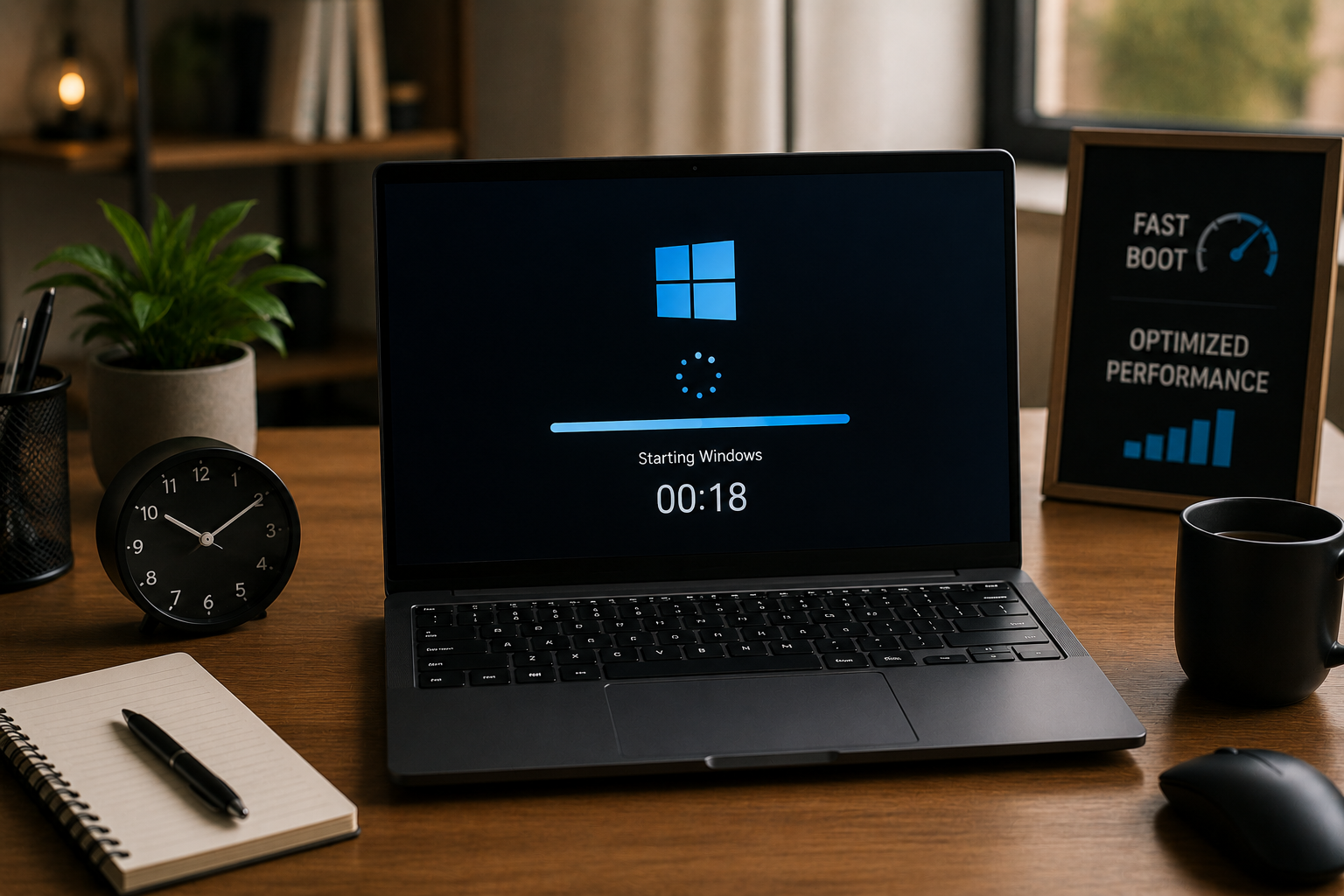
If your laptop takes several minutes just to reach the desktop, the problem is often not the age of the device—it is the collection of small issues that build up over time. Too many startup apps, overloaded background services, unnecessary temporary files, outdated storage habits, and poor system maintenance can make a perfectly usable laptop feel much older than it really is.
Many people assume a slow startup means Windows must be reinstalled. That is often unnecessary. Reinstalling takes time, risks file mistakes, and usually treats the symptom before understanding the cause.
Often, startup speed improves significantly with targeted fixes instead of a full reset.
A laptop that once started in 20 seconds may now take two or three minutes because dozens of small processes compete for resources before you even open your first program. The remarkable news is that most of these problems people can identify and improve without technical expertise.
The goal is not to make an old laptop behave like a brand-new machine. It is to remove avoidable delays, reduce background load, and help the system start cleanly and consistently.
This guide explains practical ways to reduce laptop startup time without reinstalling Windows, including what to check first, what mistakes to avoid, and which improvements actually make a noticeable difference.
Why Laptop Startup Becomes Slow Over Time
A slow startup usually happens gradually, which is why many users do not notice the decline until it becomes frustrating.
The main causes often include:
- Too many startup programs
- Background apps running automatically
- Low free storage space
- Old temporary files and system clutter
- Outdated drivers or system updates
- Weak hard drive performance
- Antivirus scans starting too aggressively
- Browser tools and sync services loading at boot
Most laptops do not slow down because of one major issue. They slow down because small delays stack together.
Example of a Common Situation
A laptop starts with the following:
- Messaging apps
- Cloud backup tools
- Browser launchers
- Printer utilities
- Music apps
- Update services
- Security scans
- Old software still running in the background
Each one feels small alone, but together they create minutes of delay.
Check Startup Programs First
This step is usually the fastest and most effective improvement.
Why Startup Apps Matter
Every program that launches with Windows uses memory, processor time, and storage access before the laptop becomes fully usable.
Many apps add themselves automatically during installation.
Users often do not realize how many are running.
How to Review Them
Open Task Manager and check the Startup section.
Look for apps that:
- Start automatically without real need
- Have high startup impact
- Are rarely used
- Were forgotten months ago
Examples may include:
- Chat apps
- Cloud sync tools
- Game launchers
- Printer assistants
- Music apps
- Update managers
What to Disable
Keep startup enabled only for programs that are genuinely necessary immediately after login.
Everything else can open manually later.
Before vs After
Before:
The laptop boots but takes two more minutes before it becomes usable.
After:
Desktop loads faster and responds immediately.
That is often the real improvement users want.
Free Up Storage Space Properly
Low storage affects more than just saving files.
Why Storage Space Impacts Startup
Windows needs working space for updates, temporary files, caching, and background operations.
When storage becomes too full, the entire system slows down—including boot time.
What to Remove First
Check for:
- Large old downloads
- Duplicate files
- Temporary installation files
- Unused applications
- Old videos and archived folders
- Large recycle bin content
Please refrain from manually deleting system files without fully understanding their purpose.
Focus first on obvious unnecessary files.
Safer Cleanup Approach
Use built-in storage cleanup tools rather than random “PC cleaner” software.
Many third-party cleaners create more problems than they solve.
Reduce Background Apps Running After Login
Some apps do not appear as startup programs but still create delays.
Why Background Processes Matter
Even after reaching the desktop, many services continue loading silently.
This makes the laptop feel slow even if the boot technically finished.
What to Check
Look for:
- Sync tools constantly scanning
- Browser background services
- Automatic update tools
- Security scans scheduled too early
- Unused helper applications
Practical Fix
Adjust the settings inside the app itself.
For example:
- Stop browser apps from running after closing
- Delay cloud sync during startup
- Reduce unnecessary auto-update behavior
Not every app needs to be active at the same time.
Restart Instead of Only Using Sleep Mode
Many users rarely restart their laptops.
That creates hidden performance issues.
Why Restarting Helps
Sleep mode is useful, but weeks without restart can leave
- Stuck background processes
- Memory overload
- Pending updates
- Slower startup recovery
A proper restart refreshes system resources.
Better Habit
Restart the laptop regularly, especially if:
- Startup feels slower than usual
- Updates were installed
- Performance feels inconsistent
- Applications behave strangely
Sometimes the simplest fix is also the most ignored one.
Keep Windows and Drivers Updated
Outdated systems often create slow boot behavior.
Why Updates Matter
Updates can improve:
- Startup optimization
- Driver compatibility
- Storage performance
- Power management
- Security stability
Ignoring updates may leave old performance issues unresolved.
What to Update
Check:
- Windows updates
- Graphics drivers
- Storage drivers
- Wi-Fi and chipset drivers
- BIOS updates only when necessary and carefully
Do not update randomly from pop-up ads or unknown websites.
Use official system tools or trusted manufacturer sources.
Check If the Laptop Uses HDD or SSD
This is one of the biggest startup speed differences.
Why Storage Type Matters
Traditional HDDs are much slower than SSDs for boot performance.
Even a clean system on an HDD often feels slower than an older laptop using an SSD.
Realistic Expectation
If your laptop still uses an HDD:
- A startup may remain slow despite cleanup
- Opening apps may feel delayed
- Background tasks create more noticeable lag
Important Note
This guide focuses on improving startup without reinstalling Windows, but knowing your storage type helps set realistic expectations.
Sometimes optimization helps greatly.
Sometimes hardware is the real limit.
Review Antivirus Behavior
Security matters, but aggressive startup scanning can create delays.
Common Antivirus Issues
Some antivirus tools:
- Run heavy scans immediately at startup
- Launch multiple background services
- Add browser protection layers that slow login
Safer Adjustment
Do not disable security completely.
Instead:
- Review startup scan settings
- Remove duplicate antivirus software
- Avoid installing multiple security suites together
One reliable security system is better than several conflicting ones.
Clean Browser Extensions and Sync Overload
Browsers often affect startup more than expected.
Why Browsers Slow Startup
Browsers may launch:
- Sync services
- Background notifications
- Extensions
- Update tools
- Hidden startup helpers
This happens even before opening the browser manually.
What to Review
Check for:
- Unused extensions
- Duplicate toolbars
- Old browser profiles
- Heavy sync across multiple devices
A lighter browser setup often improves startup and general speed.
Common Mistakes That Make Startup Worse
Many users try to fix slow startup the wrong way.
Installing Random “Speed Booster” Software
Most system boosters create extra clutter instead of solving problems.
Some add ads, unnecessary services, or unsafe software.
The safest optimization often comes from removing software, not from adding more.
Disabling Essential System Services Blindly
Following random internet advice to disable unknown services can create instability.
If you do not understand the service, do not disable it.
Startup speed should not come at the cost of system reliability.
Keeping Too Many Apps “Just in Case”
Unused software still affects performance.
Programs installed years ago often continue running quietly.
If it is not needed, it should probably be removed.
Ignoring Heat and Hardware Health
Overheating, battery issues, and aging storage can affect startup too.
Software fixes help, but physical hardware still matters.
Expert Recommendations for Long-Term Startup Performance
Improvement lasts longer when habits change.
Keep Installed Software Minimal
Every program adds updates, services, and maintenance.
Fewer applications often mean faster startup and fewer background conflicts.
Install only what you actively use.
Review Startup Items Every Few Months
New apps frequently add themselves to startup without clear notice.
Regular review prevents slow buildup over time.
This is easier than fixing years of clutter later.
Maintain Free Space Consistently
Do not wait until the drive is nearly full.
Healthy free space improves updates, caching, and smoother boot behavior.
Storage health affects daily performance more than many users realize.
Understand the Difference Between Slow Boot and Slow Login
Sometimes Windows boots normally, but post-login apps create the delay.
Fixing the right stage saves time and avoids unnecessary troubleshooting.
Laptop Startup Speed Checklist
Before considering reinstalling Windows, check:
- Are too many startup apps enabled?
- Is storage space too full?
- Are background apps overloaded?
- Has the laptop been restarted recently?
- Are Windows and drivers updated?
- Is antivirus creating heavy startup scans?
- Are browser extensions and sync tools excessive?
- Is the system limited by an old HDD?
Most slow startups improve by fixing these first.
FAQs
Will reinstalling Windows always fix slow startup?
Not always. If the real issue is too many startup apps, low storage, or an aging hard drive, reinstalling may only provide temporary improvement.
How many startup programs should be enabled?
Only the ones you truly need immediately after login. There is no perfect number, but fewer unnecessary startup apps usually means faster performance.
Is an SSD really that much faster than an HDD?
Yes. SSDs usually improve startup speed dramatically compared to traditional hard drives. The difference is often noticeable within the first boot.
Are PC cleaning tools worth using?
Most third-party “speed booster” tools are unnecessary and sometimes harmful. Built-in Windows cleanup tools are usually safer and more reliable.
How often should I review startup performance?
Every few months is a good habit, especially after installing new software or noticing slower boot behavior.
Conclusion
A slow laptop startup does not automatically mean Windows needs to be reinstalled.
Usually, the problem comes from accumulated startup apps, overloaded background processes, low storage space, outdated maintenance habits, and years of small software decisions that quietly slow the system down.
Disabling unnecessary startup programs, cleaning storage properly, reviewing browser behavior, managing antivirus settings, and understanding hardware limits can make a major difference without the risk of a full reinstall.
The goal is not perfection. It is removing avoidable delays so the laptop becomes usable quickly and consistently again.
Because replacing a laptop—or reinstalling Windows—should be the last step, not the first one.