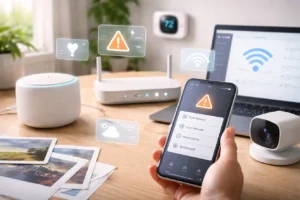
Smart homes have come a long way recently. Devices that once felt experimental are now part of everyday life. Lights respond to voice commands, thermostats learn routines, and security cameras send alerts directly to our phones.
But even with all this convenience, smart home systems don’t always behave perfectly.
I’ve experienced numerous peculiar incidents involving connected devices. For instance, I once entered my kitchen late at night and saw the lights on, even though no one was there. Another time, I asked my smart assistant to “set the mood for a movie,” and instead of dimming the lights, it activated a completely unrelated routine.
Experiences like these are surprisingly common. In most cases, the issue isn’t a broken device at all. It’s usually caused by a minor configuration issue, a network delay, or a conflict between apps controlling the same device.
Over time, I’ve discovered that a few simple troubleshooting steps can solve many smart home problems. Below are some of the most common issues I’ve encountered and the practical solutions that usually fix them.
Problem 1: A Device Shows “No Response” or Stops Working
One of the most common smart home frustrations is when a device suddenly becomes unresponsive. In your mobile app, the device might still appear in the list, but it shows an error message or refuses to respond to commands.
This problem can feel confusing because the device itself may still be powered on and connected.
Often, the problem stems from communication issues between the device and the smart home hub.
Modern smart homes often rely on communication standards such as Matter, which is a unified connectivity standard for smart home devices, and Thread, which is a low-power wireless mesh networking protocol. These systems allow devices from different manufacturers to communicate more efficiently within the same network.
However, if multiple hubs are present—such as a streaming device and a voice assistant both acting as controllers—they can occasionally create routing conflicts, which may lead to devices not responding as expected or commands being misinterpreted.
How I Usually Fix It
Instead of restarting the device immediately, I usually start by restarting the main hub or controller first.
For example, if my smart home system uses a hub device or a smart speaker as the primary controller, I reboot that device and wait for the network to stabilize.
In many situations, the hub simply needed a quick reset to refresh the device connection.
Another quick step that sometimes helps is toggling Wi-Fi on my phone off and back on. This refreshes the device discovery process and allows the app to reconnect properly.
These simple actions solve the majority of “No Response” errors I encounter.
Problem 2: Automations Are Slow or Trigger Late
Automation is one of the main reasons people build smart homes in the first place. Motion sensors can turn on lights automatically, schedules can adjust room temperatures, and routines can prepare a home for sleep or work.
However, sometimes these automations don’t trigger instantly.
For example, I once set up motion-activated lights in my hallway. The idea was simple: when someone walks into the hallway at night, the lights turn on automatically. But occasionally, there would be a noticeable delay before the lights responded.
After some testing, I realized the automation depended on a cloud connection rather than a local one.
Why This Happens
Some smart home platforms process automation rules remotely through internet servers instead of running them directly on your home network.
If the internet connection slows down or the service experiences temporary delays, automation responses may also slow down.
Platforms such as Home Assistant and Hubitat are popular among enthusiasts partly because they allow many automations to run locally.
Local automation means the instruction stays within your home network, which can reduce delays.
What I Recommend
Whenever possible, I try to configure automations so they run locally through the hub instead of relying on cloud processing.
Local automations typically react more quickly and are less susceptible to internet outages or network congestion.
Even small adjustments like this can make a smart home feel much more reliable.
Problem 3: Devices Turning On by Themselves
Another strange situation many smart home users experience is when devices appear to activate without being manually triggered.
Lights may turn on unexpectedly, or plugs might activate even though no one issued a command.
In my experience, this usually happens when multiple routines overlap or conflict.
A device may be linked to routines in multiple applications, for instance. A schedule in one platform could activate the device at the same time another platform is trying to turn it off.
It’s surprisingly easy for such scenarios to happen when devices are connected to several ecosystems simultaneously.
For instance, a smart plug might be linked to:
- Amazon Alexa
- Apple Home
- Google Home
Each platform might have its own routines or schedules controlling the same device.
My Simple Fix
When I move devices between systems or create new automations, I usually perform a factory reset before reconnecting them.
This clears any leftover instructions stored inside the device and prevents old routines from interfering with new ones.
I also review all automation settings across my apps to make sure there are no conflicting schedules or routines.
This small “digital cleanup” often solves mysterious behavior immediately.
Problem 4: Battery-Powered Devices Losing Power Too Quickly
Many smart home devices rely on batteries, especially items such as smart locks, door sensors, and motion detectors.
When these devices are working properly, their batteries can often last several months. But occasionally, I’ve noticed batteries draining much faster than expected.
In many cases, the phenomenon happens because the device is struggling to maintain a stable connection with the network hub.
If the signal is weak, the device may attempt to transmit data repeatedly, which increases energy usage.
Improving Signal Strength
One way to improve device efficiency is by strengthening the network coverage within the home.
The protocol thread works as a mesh network. This means every powered device can help extend the signal to nearby devices.
Adding an additional smart plug or other always-powered device between the hub and the battery device can improve the connection.
Once the signal becomes stronger, the battery-powered device usually requires less energy to communicate.
Increasing signal coverage can, in my experience, significantly increase battery life.
Frequently Asked Questions
Why does my smart home stop working when the internet goes down?
Many devices still require internet access to communicate with cloud services. However, some modern platforms allow devices to communicate locally within the home network.
When shopping for new devices, it can be helpful to look for products that support local control or standards such as Matter, which may allow certain features to continue working even if the internet connection is temporarily unavailable.
Why does my smart bulb flicker sometimes?
Smart bulbs require a stable power supply. Installing smart bulbs in lamps with traditional dimmer switches may cause the dimmer circuit to interfere with the bulb’s electronics.
A simple solution is to keep the lamp switch set to full power and control brightness through the smart home app instead.
How many devices can a smart home network support?
The type of network in use determines the exact number.
Traditional home Wi-Fi routers can support many devices, but performance may vary depending on signal strength and network load.
Smart home-specific protocols like Thread distribute communication across multiple nodes to efficiently handle larger numbers of connected devices.
Final Thoughts
Smart homes are designed to simplify daily life, but like any technology system, they occasionally need troubleshooting.
The good news is that many issues—such as delayed automations, unresponsive devices, or unexpected behavior—can usually be resolved with a few basic adjustments.
In my experience, the key is understanding that smart home devices rely on three main elements:
- stable network connections
- clear automation rules
- properly configured hubs and controllers
When these elements are working together, smart homes become remarkably reliable.
Instead of viewing occasional glitches as major problems, I try to treat them as opportunities to better understand how the system works.
With a little patience and a few practical troubleshooting steps, most smart home setups can run smoothly and continue providing the convenience that connected technology promises.