
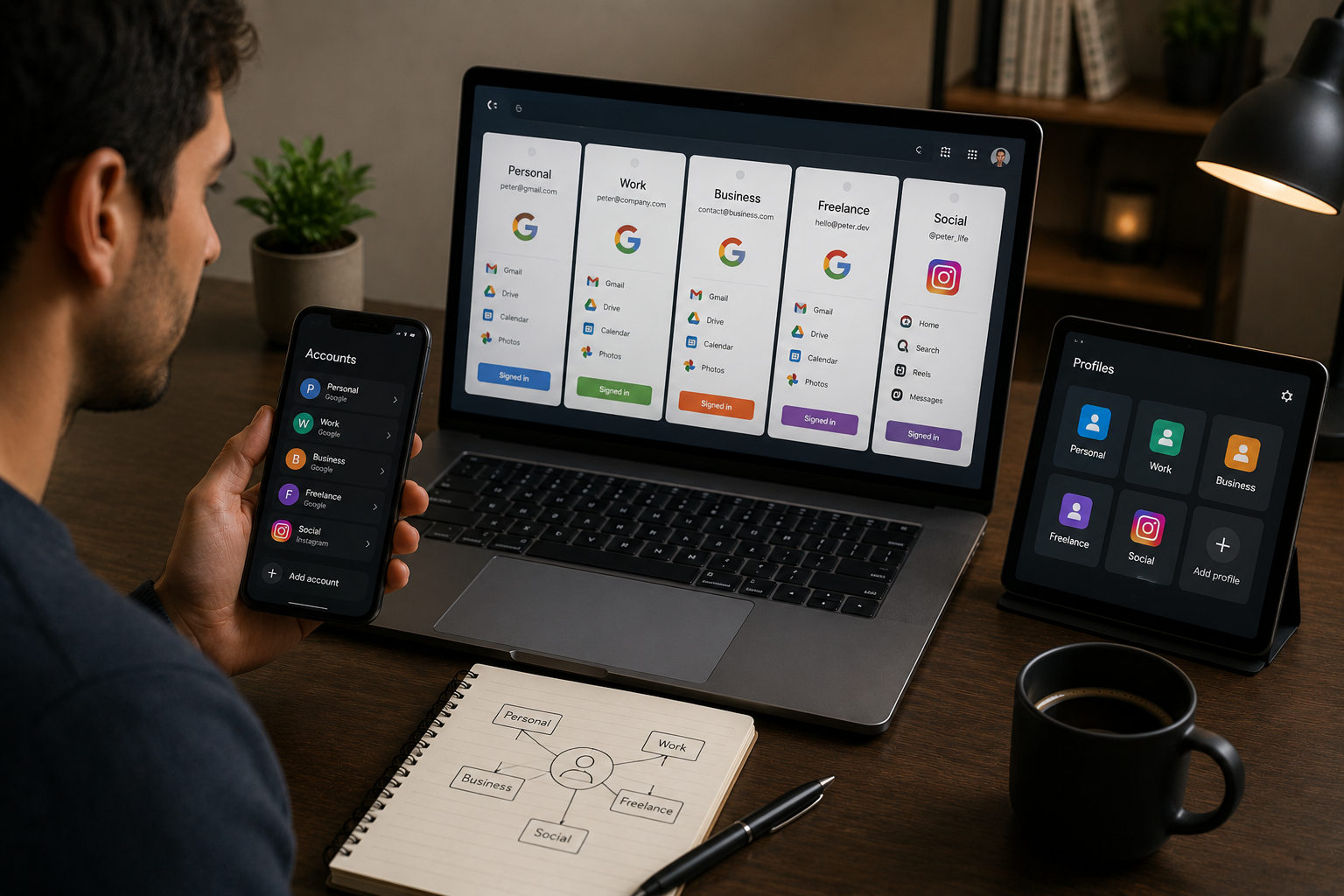
Managing multiple accounts—whether emails, social media, bank accounts, or cloud storage—used to feel like walking a tightrope. Each account had its own passwords, notifications, and workflows, and keeping everything straight often became overwhelming. I constantly mixed up logins, missed important updates, and wasted hours switching between platforms.
For years, I thought chaos was part of the deal. But then I discovered strategies and tools that allowed me to manage multiple accounts efficiently, without stress or confusion. Over time, I developed a system that made everything organized, seamless, and even enjoyable. In this article, I’ll share exactly how I did it, the practical steps I took, and tips you can use to simplify your own digital life.
Why Managing Multiple Accounts Was a Challenge
Before I developed a system, juggling accounts felt impossible. Here’s why it was so overwhelming:
- Too many logins: Remembering different usernames and passwords for email, social media, cloud storage, and financial accounts was exhausting.
- Constant notifications: Each account had its own alerts, leading to distraction and missed information.
- Overlapping tasks: Sometimes I would perform a task on one account, only to realize it needed to be repeated on another.
- Security risks: Writing passwords on paper or reusing them across accounts made me vulnerable to hacks.
The result? Missed deadlines, frustration, and wasted time. I knew I needed a system to regain control.
Step 1: Organize Accounts by Category
The first step I took was grouping accounts by category. This simple step helped me see the scope of my digital life and prioritize management.
- Emails: Work, personal, and newsletters
- Social Media: Professional networking, personal profiles, hobby-based pages
- Finance: Banks, investment apps, digital wallets
- Cloud Storage: Google Drive, Dropbox, iCloud, and other file-sharing platforms
- Subscriptions: Streaming services, SaaS platforms, and apps
By categorizing accounts, I could manage them in batches, rather than hopping randomly from one to another.
Step 2: Use a Secure Password Manager
One of the biggest breakthroughs was using a password manager. Before this, I had a chaotic mix of sticky notes, browser-saved passwords, and reused credentials—a nightmare for security and efficiency.
How I Implemented It:
- Chose a reputable password manager with encryption and cross-device syncing
- Stored all account logins, notes, and security codes in one secure place
- Used the password manager’s auto-fill feature to quickly log into accounts
- Generated unique, strong passwords for each account, eliminating the risk of repeated passwords
This step alone reduced login stress and eliminated confusion about which credentials belonged to which account.
Step 3: Sync Notifications Strategically
Notifications were one of my biggest time drains. I used to get alerts from every account on my phone, computer, and tablet, creating a constant state of distraction.
Here’s what I did to fix it:
- Turned off non-essential notifications for social media and promotional emails
- Grouped essential alerts into priority categories, like work emails, bank alerts, and urgent messages
- Used the password manager and automation tools to filter notifications so only relevant updates reached me
This reduced stress and made it easy to stay on top of important updates without being bombarded.
Step 4: Automate Routine Tasks Across Accounts
Automation was a game-changer. I realized many tasks were repetitive: transferring files between cloud accounts, checking balances, or posting updates to multiple social media profiles.
Examples of Automation I Set Up:
- Email rules: Automatically sort emails by category or mark them for follow-up
- Cross-posting tools: Schedule posts across multiple social media accounts simultaneously
- Cloud backups: Automatically sync important files from one cloud service to another
- Recurring reminders: Set up for bill payments, subscriptions, and routine tasks
Automation not only saved time but also reduced human error, ensuring tasks were done consistently.
Step 5: Use Unified Dashboards
Managing multiple accounts from separate apps can be overwhelming. I discovered dashboard apps that integrate multiple platforms into one view.
- For emails, I used a client that pulled multiple inboxes together, so I could check all messages in one place
- Social media dashboards let me monitor engagement, post schedules, and notifications across accounts
- Financial dashboards allowed me to see balances, transactions, and investment performance at a glance
Having a centralized dashboard gave me clarity and a sense of control I never had before.
Step 6: Keep Accounts Updated and Clean
Multiple accounts can quickly become cluttered. Old logins, inactive subscriptions, and forgotten profiles create unnecessary confusion.
I developed a routine:
- Quarterly review: I audited accounts, canceled unused subscriptions, and updated outdated passwords
- Archive old emails: Moved non-essential messages to archives to declutter inboxes
- Remove old social profiles: Deactivated accounts I no longer use, reducing digital noise
This regular maintenance kept my digital life organized and easier to manage.
Step 7: Secure Your Accounts
Managing multiple accounts increases the risk of hacks and breaches. I made security a priority:
- Enabled two-factor authentication for all critical accounts
- Regularly updated passwords and security questions
- Monitored accounts for suspicious activity using the password manager and bank alerts
- Avoided logging into sensitive accounts on public or shared devices
Security became part of my routine, giving me confidence that my accounts were safe.
Step 8: Track Account Usage and Efficiency
To truly manage multiple accounts efficiently, I started tracking how much time I spent on each. This step was surprising.
- Some accounts were taking more time than necessary, like rarely-used social media or duplicated cloud storage
- Certain workflows were inefficient, like manually transferring files between accounts
- By analyzing usage, I could prioritize high-impact accounts and streamline or eliminate low-value ones
This helped me focus my time and energy where it mattered most.
Step 9: Leverage Shortcuts and Quick Access Tools
Over time, I learned to use shortcuts to jump into accounts instantly:
- Browser bookmarks with folders for work, personal, and finance accounts
- Desktop shortcuts for cloud drives and frequently used apps
- Keyboard shortcuts and gestures for mobile apps to navigate faster
This small step saved minutes each time I accessed an account, which added up to hours weekly.
Personal Experience: How This System Changed My Life
Before implementing these strategies, managing multiple accounts was stressful and time-consuming. I often forgot passwords, missed emails, and duplicated work.
Now, I can:
- Log into any account quickly without confusion
- Handle emails, social media, and finances efficiently
- Avoid missing deadlines or bill payments
- Focus on strategic work instead of repetitive account management
The sense of clarity and control is invaluable. It’s not just about efficiency—it’s about reducing stress and feeling confident in my digital life.
Tips for Anyone Managing Multiple Accounts
If you struggle with multiple accounts, here’s a practical checklist you can follow:
- Categorize accounts to see the big picture
- Use a secure password manager to store credentials safely
- Sync and prioritize notifications to avoid distractions
- Automate repetitive tasks wherever possible
- Use unified dashboards for centralized management
- Regularly clean and audit accounts to prevent clutter
- Enable strong security measures, like two-factor authentication
- Track account usage to optimize time and effort
- Set up shortcuts and quick-access tools to save time
Following these steps will make managing multiple accounts manageable and even enjoyable.
Conclusion
Managing multiple accounts doesn’t have to be confusing or stressful. With a combination of categorization, secure password management, automation, dashboards, and smart workflows, I transformed a chaotic digital life into a streamlined, organized system. I no longer waste hours switching between accounts, forgetting passwords, or missing important updates.
Whether you have a few accounts or dozens, these strategies can help you regain control, save time, and reduce stress. By implementing these techniques, you’ll experience efficiency, clarity, and confidence in managing your digital life—just like I did.
FAQs
1. Can this system work for both personal and professional accounts?
Yes. The principles of organization, automation, and security apply to all types of accounts.
2. Is a password manager really necessary?
Absolutely. It saves time, enhances security, and eliminates confusion about login credentials.
3. How often should I review my accounts?
A quarterly review is sufficient for most users to keep accounts clean, secure, and organized.
4. Can automation completely replace manual account management?
Not entirely. Automation handles repetitive tasks, but human oversight is needed for critical decisions and unique situations.
5. Is it safe to link multiple accounts in one app or dashboard?
Yes, if you use a reputable app with encryption, two-factor authentication, and strong privacy policies.