
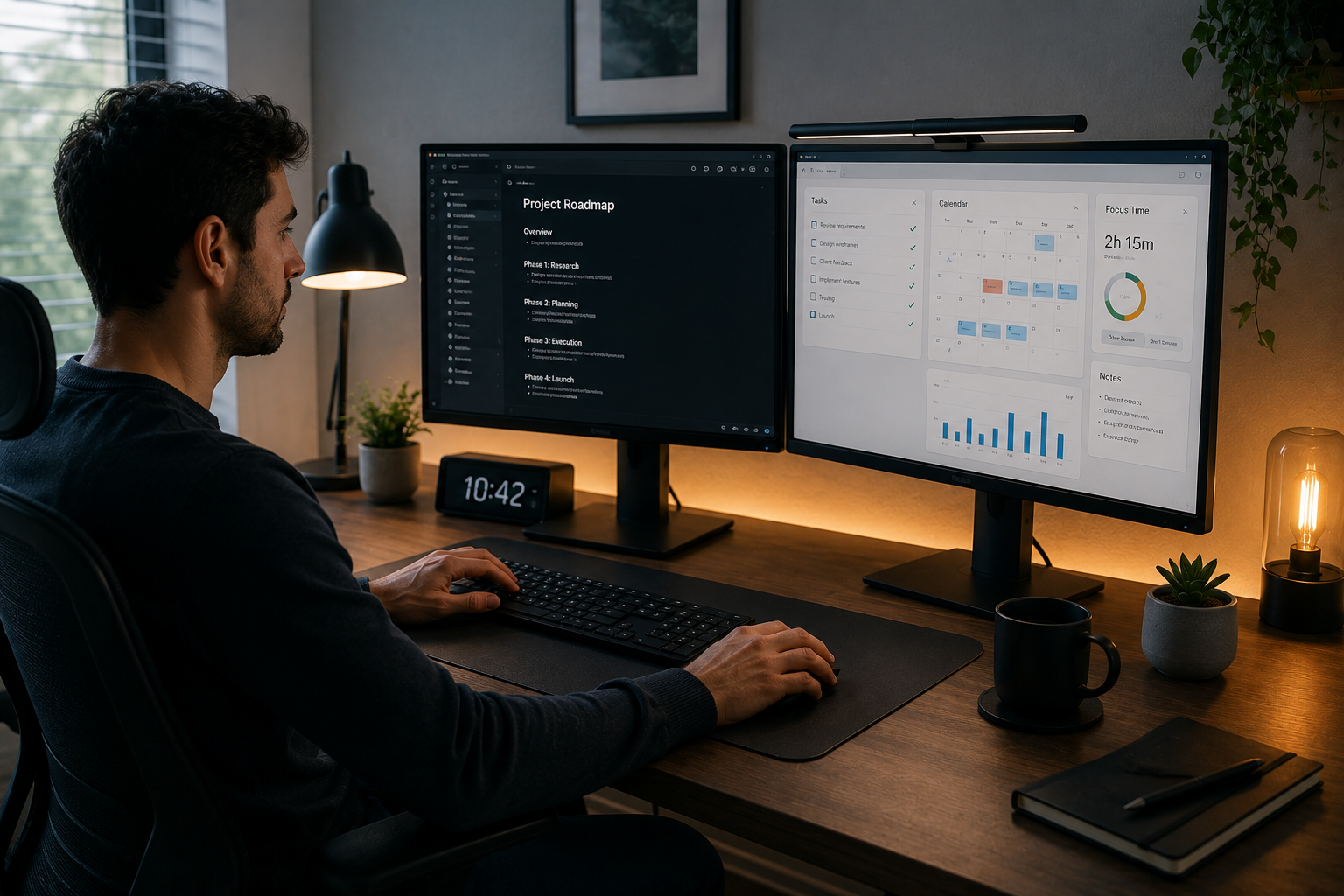
Working from home sounds simple until the small distractions start stacking up. Constantly switching between browser tabs, shrinking windows to compare documents, missing notifications, and losing focus during meetings can turn even basic tasks into slow, frustrating work.
For many people, the problem is not poor time management—it is limited screen space.
Using a single laptop screen for email, video calls, spreadsheets, research, messaging apps, and daily tasks creates unnecessary mental load. The brain keeps shifting between tasks instead of staying focused on one workflow. That constant switching quietly reduces productivity and increases fatigue by the end of the day.
A dual monitor setup practically solves this. It creates dedicated visual space for different types of work, reduces interruptions, and helps maintain concentration for longer periods. The goal is not just having more screens—it is building a workspace that supports better focus.
This article explains how a dual monitor setup improves work-from-home productivity, how to arrange it properly, what mistakes to avoid, and the simple setup choices that make the biggest difference.
Why a Dual Monitor Setup Improves Focus
Many people think dual monitors are only useful for designers, programmers, or video editors. In reality, even regular office work becomes easier with two screens.
The biggest advantage is reducing “context switching.”
Instead of minimizing and reopening windows repeatedly, important tasks stay visible at the same time.
For example:
- Main monitor: active work (documents, spreadsheets, writing)
- Second monitor: reference material, email, messaging apps, video meetings
This creates a smoother workflow and fewer interruptions.
Less Mental Friction
Every time you stop to search for a hidden window, your concentration breaks.
That may only take a few seconds, but repeated dozens of times per day, it becomes a major productivity drain.
Two monitors reduce those small interruptions and make work feel calmer.
Better Meeting Productivity
During video calls, one screen can stay dedicated to the meeting while the other handles notes, project files, or follow-up actions.
This avoids awkward switching and helps maintain attention during discussions.
Cleaner Work Separation
Separate screens help create “task zones.”
For example:
- Left screen for communication
- Right screen for deep work
This structure supports better focus because your eyes and attention know where each type of task belongs.
My Practical Dual Monitor Layout
A productive setup does not need expensive equipment. The best results usually come from simple, consistent positioning.
Primary Monitor in the Center
The main screen should be directly in front of you.
This is where the most important work happens:
- Writing
- Editing
- Spreadsheets
- Research
- Main project tasks
This reduces neck strain and supports better posture.
Secondary Monitor Slightly to the Side
The second monitor works best slightly angled beside the main display.
It is ideal for:
- Team chat
- Calendar
- Music
- Video meetings
- Reference documents
This keeps supporting information accessible without becoming a distraction.
Laptop as a Secondary Screen
If using a laptop plus one monitor, the external monitor should usually be the primary screen.
The laptop can then handle secondary tasks like the following:
- Notifications
- Communication apps
- Browser references
This often works better than using the smaller laptop screen as the main workspace.
Choosing the Right Monitor Size
Bigger is not always better.
A balanced setup is easier to use than oversized screens that create eye strain.
Recommended Sizes for Homework
For most users:
- 22 to 24 inches works well for compact desks
- 24 to 27 inches offers excellent balance
- Matching monitor sizes creates better visual consistency
Very large monitors can cause excessive head movement, especially on small desks.
Resolution Matters More Than Size
A sharp 24-inch monitor often feels better than a blurry, larger screen.
For office work:
- Full HD (1080p) is fine for most users
- 1440p offers sharper text for long reading sessions
Clear text reduces eye fatigue during long workdays.
Desk Positioning for Better Comfort
Dual monitors improve focus only when the physical setup is comfortable.
Poor placement creates neck pain, back strain, and faster fatigue.
Eye-Level Positioning
The top of the main monitor should sit close to eye level.
Looking too far down causes neck tension over time.
A monitor stand often solves this better than stacking books.
Proper Viewing Distance
Keep screens roughly an arm’s length away.
Too close causes eye strain. Too far encourages leaning forward.
Lighting Control
Avoid placing monitors directly in front of bright windows.
Glare reduces visibility and increases fatigue.
Soft side lighting usually works better than strong overhead light.
Step-by-Step Setup for Better Workflow
Good focus comes from workflow design, not just hardware.
Step 1: Decide Your Main Work Zone
Identify where your primary attention should stay.
Usually this is
- Writing
- Reports
- Coding
- Design
- Financial tracking
Keep this centered.
Step 2: Move Communication to the Second Screen
Shift distractions away from the main monitor.
This includes:
- Slack or team chat
- Calendar
- Notifications
- Meetings
This creates clearer mental boundaries.
Step 3: Use Window Snapping
Built-in window snapping helps organize both screens quickly.
Keep standard layouts consistent every day so your brain does not waste time reorganizing.
Step 4: Reduce Visual Clutter
Too many open windows defeat the purpose.
Keep only active tasks visible.
Dual monitors should improve clarity, not create digital chaos.
Step 5: Set Notification Rules
Not every app needs constant alerts.
Mute unnecessary notifications to protect focus.
The second monitor should support productivity, not become a distraction machine.
Cable Management and Workspace Cleanliness
Messy desks quietly affect concentration.
Visible cable clutter creates visual noise and makes the workspace feel more stressful.
Simple Improvements
Use:
- Cable clips
- Monitor arms
- Power strip organizers
- The wireless keyboard and mouse were practical
A cleaner desk supports a calmer work environment.
Docking Stations for Laptop Users
If you frequently connect and disconnect a laptop, a docking station saves time.
Instead of plugging in multiple cables daily, one connection handles the following:
- Monitor output
- Keyboard
- Mouse
- Ethernet
- Charging
This creates smoother transitions between work modes.
Software Habits That Improve Dual Monitor Productivity
Hardware helps, but habits matter more.
Use Separate Browser Profiles
Keep work and personal browsing separate.
This reduces distraction and improves organization.
Keep Password Managers Accessible
One screen can hold secure login workflows while the main screen handles work tasks.
This improves both productivity and digital security.
Calendar Visibility Matters
Keeping the calendar visible on the second screen reduces missed meetings and rushed schedule changes.
Use Focus Modes
Many operating systems now support focus or do-not-disturb settings.
Combining these with dual monitors creates stronger attention control.
Common Mistakes That Reduce Productivity
More screens do not automatically mean better work.
Some setups actually create more distractions.
Putting Both Monitors at Extreme Angles
This causes constant neck movement and physical discomfort.
The main screen should always stay centered.
Using the Second Monitor Only for Distractions
If the second screen becomes a permanent social media space, focus gets worse instead of better.
It should support work, not sabotage it.
Ignoring Ergonomics
Poor chair height, low monitor position, and bad lighting create fatigue faster than people realize.
Too Many Notifications
A second screen full of pop-ups destroys concentration.
Control alerts carefully.
Buying Expensive Equipment First
Monitor arms and premium accessories help, but workflow design matters more than expensive gear.
Start with function, then upgrade where needed.
Expert Recommendations for Long-Term Work-From-Home Focus
A strong dual monitor setup should support consistency, not just short-term productivity.
Keep One Screen for Deep Work
Protect your primary monitor from interruptions.
This improves concentration significantly over time.
Review Your Setup Monthly
Ask:
- What creates distraction?
- Which apps waste attention?
- Which tasks deserve dedicated screen space?
Small adjustments create better long-term results.
Protect Eye Health
Use:
- regular screen breaks
- comfortable brightness levels
- proper font scaling
Focus is hard to maintain when eye strain builds.
Prioritize Stability Over Complexity
Reliable monitors, simple layouts, and consistent habits outperform overly complicated setups.
Secure the Work Environment
Work-from-home setups often handle sensitive files.
Use:
- screen lock settings
- secure Wi-Fi
- updated software
- privacy awareness during video calls
Productivity and digital safety should work together.
Before vs After: Real Productivity Changes
Before using dual monitors, common problems often include:
- losing track of tasks
- reopening the same windows repeatedly
- missed messages during focused work
- poor note-taking during meetings
- constant browser tab overload
After a structured dual monitor setup:
- smoother workflow becomes normal
- fewer interruptions break concentration
- meetings feel more manageable
- work feels less mentally exhausting
- task completion becomes more predictable
The biggest improvement is usually not speed—it is reduced mental fatigue.
That matters more over a full workweek.
FAQs
Is a dual-monitor setup worth it for basic office work?
Yes. Even for email, spreadsheets, writing, and meetings, dual monitors reduce window switching and improve workflow. The benefit is often larger than expected.
Can I use a laptop and one monitor instead of buying two monitors?
Absolutely. A laptop plus one external monitor is often the best starting point. For many people, this provides most of the productivity benefits without extra cost.
What is the best second-screen use for focus?
Communication tools work well on the second screen—email, messaging apps, calendars, and meetings—while the main screen stays dedicated to focused work.
Does a bigger monitor replace the need for two screens?
Sometimes, but not always. A large single monitor helps with space, but separate screens often create better task separation and clearer focus zones.
Are dual monitors bad for posture?
Only if positioned poorly. With correct height, distance, and angle, dual monitors can actually improve posture compared to constantly leaning over a small laptop screen.
Conclusion
A dual monitor setup is not about having a more impressive desk—it is about removing small daily frustrations that quietly damage focus.
Working from home becomes harder when one screen tries to handle everything at once. Constant tab switching, hidden windows, and interrupted concentration create unnecessary stress and slower results.
Adding a second screen creates structure. One monitor handles focused work; the other supports communication and reference tasks. This simple separation improves attention, reduces mental fatigue, and makes the workday feel more controlled.
The best setup does not need expensive hardware. Good positioning, clean workflow habits, proper ergonomics, and fewer distractions matter far more than premium accessories.
When designed well, a dual-monitor workspace becomes less about productivity tricks and more about building an environment where focused work feels easier every day.