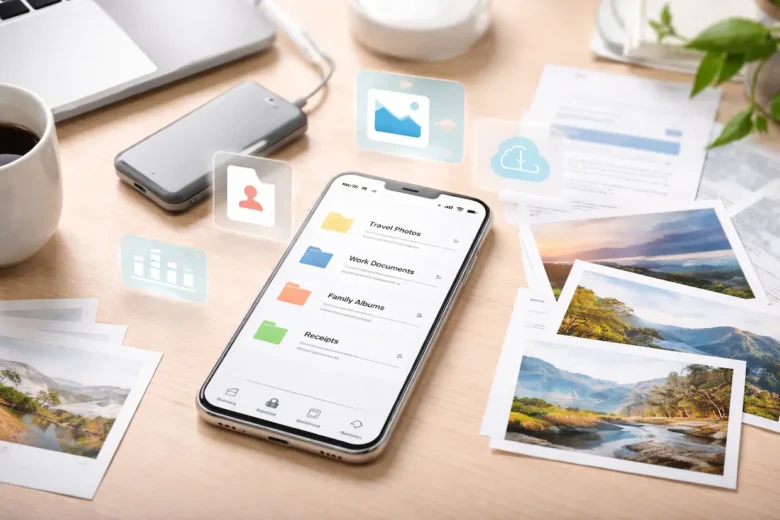
Over time, phones tend to become cluttered with photos, documents, screenshots, downloads, and random files that are easy to forget but hard to manage. When storage starts filling up or when it becomes difficult to find a specific file quickly, organization becomes less of a preference and more of a necessity.
In my experience, organizing photos and files directly on my phone is not about doing a one-time cleanup—it’s about building a simple, consistent system that I can maintain daily. Instead of letting files accumulate randomly, I follow a structured approach using folders, albums, naming habits, and built-in tools. In this article, I’ll walk through how I organize everything step-by-step so that my phone stays clean, efficient, and easy to navigate.
Starting with a Clean-Up Before Organizing
Before creating any system, I always begin by removing unnecessary files. Organizing clutter only makes sense when the clutter is reduced.
What I usually remove:
- Duplicate photos and screenshots
- Blurry or unusable images
- Old downloads that are no longer needed
- Temporary files from apps
How I approach it:
- Go through the gallery section by section
- Delete files in bulk rather than individually
- Empty the trash or recently deleted folder afterward
This step helps me avoid organizing files that I don’t actually need, making the rest of the process more efficient.
Using Built-In Gallery Features for Photos
Most smartphones come with a default gallery app that already includes useful organization features. On many devices, the built-in app, such as Apple Photos or similar gallery tools, allows albums, tagging, and search functionality.
How I use gallery features:
- Create albums for different categories (travel, work, personal)
- Use automatic grouping (faces, locations, dates)
- Favorite important photos for quick access
Benefits:
- No need for third-party apps
- Seamless integration with the device
- Automatic sorting reduces manual effort
This built-in system forms the foundation of my photo organization.
Creating a Logical Album Structure
Albums are the backbone of my photo organization system. Instead of dumping everything into one place, I create a structure that reflects how I actually use my photos.
My album categories include
- Personal memories (family, friends, events)
- Travel albums (each trip gets its own folder)
- Work-related images
- Receipts and documents
- Screenshots and saved content
Practical tips:
- Keep album names simple and descriptive
- Avoid creating too many nested or overlapping albums
- Use consistent naming patterns
A clear album structure makes it easier to locate photos without endless scrolling.
Managing Files Using File Manager Apps
For documents, downloads, and non-photo files, I rely on file manager apps instead of the gallery. One of the most useful tools I’ve used is the Files by Google app, which helps organize files into categories and clean up storage.
How I organize files:
- Separate documents into folders like Work, Personal, and Downloads
- Move files from the default download folder into appropriate categories
- Delete unnecessary files regularly
Why this matters:
- Prevents the download folder from becoming cluttered
- Makes file retrieval faster
- Keeps different file types organized separately
File manager apps provide more control than gallery apps when dealing with mixed file types.
Renaming Files for Better Identification
One of the simplest but most effective habits I follow is renaming files with meaningful names.
Why renaming helps:
- Default filenames like IMG_1234 are not descriptive
- Custom names make searching easier
- Helps avoid confusion when files accumulate
Examples of good naming:
- “Invoice_Internet_March2026.pdf”
- “Vacation_Paris_Eiffel_Tower.jpg”
- “Meeting_Notes_ProjectA.docx”
Tips:
- Use dates in filenames for chronological sorting
- Keep names short but descriptive
- Avoid special characters that may cause compatibility issues
Renaming adds clarity and makes files easier to identify at a glance.
Using Folders Instead of Leaving Files in Downloads
The downloads folder is often the most neglected area on a phone. I make it a habit to move files out of downloads immediately after saving them.
My folder system includes
- Documents (PDFs, Word files)
- Images
- Receipts and invoices
- Temporary files (cleared regularly)
Workflow:
- Open downloads weekly
- Sort files into relevant folders
- Delete anything no longer needed
This prevents the downloads folder from becoming a storage dump.
Organizing Screenshots Separately
Screenshots can quickly accumulate and clutter your gallery. To manage them effectively, I keep them in a dedicated album.
How I manage screenshots:
- Auto-save screenshots into a separate album if possible
- Review and delete unnecessary ones regularly
- Move important screenshots to relevant folders
Common use cases:
- Saving instructions or guides
- Capturing receipts or confirmations
- Temporary reference material
Keeping screenshots separate prevents them from mixing with meaningful photos.
Leveraging Search and Smart Features
Modern smartphones include search capabilities that make file retrieval easier without manual browsing.
Features I use:
- Search by keyword (file names or content)
- Search by date or location
- Face recognition in photos (if enabled)
Example:
Instead of scrolling through hundreds of images, I simply type a keyword like “invoice” or “trip” to locate relevant files instantly.
This reduces the need for overly complex folder structures.
Backing Up Files While Staying Organized
Organization becomes more effective when combined with backup practices. I use cloud storage alongside local storage to keep files safe and accessible.
Tools commonly used:
- Cloud storage services like Google Drive
- Automatic photo backup features in gallery apps
My approach:
- Sync important folders with cloud storage
- Enable automatic photo backup
- Periodically verify that backups are working
Backup ensures that even if files are lost or the phone is damaged, important data remains accessible.
Using Tags and Favorites for Quick Access
Instead of relying only on folders, I also use tagging and favorites to highlight important files.
How I use this feature:
- Mark frequently used photos as favorites
- Tag important documents for quick filtering
- Use labels where supported
Benefits:
- Faster access to important files
- Reduces time spent searching
- Helps prioritize frequently used content
This adds an additional layer of organization beyond folders.
Maintaining a Regular Cleaning Routine
Organization is not a one-time task. Without maintenance, files gradually become disorganized again.
My routine includes:
- Weekly cleanup of downloads and screenshots
- Monthly review of photos and albums
- Periodic deletion of duplicates and unnecessary files
Why consistency matters:
- Prevents buildup of clutter
- Keeps storage optimized
- Reduces time spent on future cleanups
A small routine maintained regularly is more effective than occasional large cleanups.
Avoiding Common Organization Mistakes
Over time, I’ve noticed certain mistakes that make file organization harder instead of easier.
Common mistakes:
- Creating too many folders without a clear structure
- Ignoring duplicate files
- Not renaming files
- Keeping everything in downloads
- Relying only on memory instead of a system
How to avoid them:
- Keep the folder structure simple
- Regularly review and clean files
- Stick to consistent naming and categorization habits
- Use tools instead of manual searching when possible
Avoiding these mistakes helps maintain long-term organization.
Conclusion
Organizing photos and files directly on a phone is all about creating a simple, consistent system that works in real-life situations. By starting with cleanup, using built-in gallery tools like Apple Photos, organizing files with tools like Files by Google, and storing important documents in cloud services such as Google Drive, it becomes much easier to manage digital clutter.
The key is not perfection but consistency. With clear folders, meaningful file names, regular maintenance, and smart use of features like search and favorites, your phone can stay organized without much effort. A well-structured system saves time, reduces frustration, and ensures that important files are always within reach when needed.
FAQs
1. What is the easiest way to organize photos on a phone?
The easiest way is to use albums within your gallery app, group photos by category (travel, personal, work), and regularly delete unnecessary images.
2. How often should I clean my phone files?
A weekly quick cleanup and a monthly deeper review are usually enough to keep files organized and storage optimized.
3. Should I use cloud storage for organizing files?
Yes, cloud storage helps keep files backed up and accessible across devices while also reducing storage usage on your phone.
4. How do I prevent duplicate photos on my phone?
Avoid saving multiple copies manually, use built-in duplicate detection features if available, and periodically scan for duplicates using file manager tools.
5. Is it better to use folders or albums for organization?
Use albums for photos and folders for documents and mixed file types. Combining both methods provides better overall organization and flexibility.