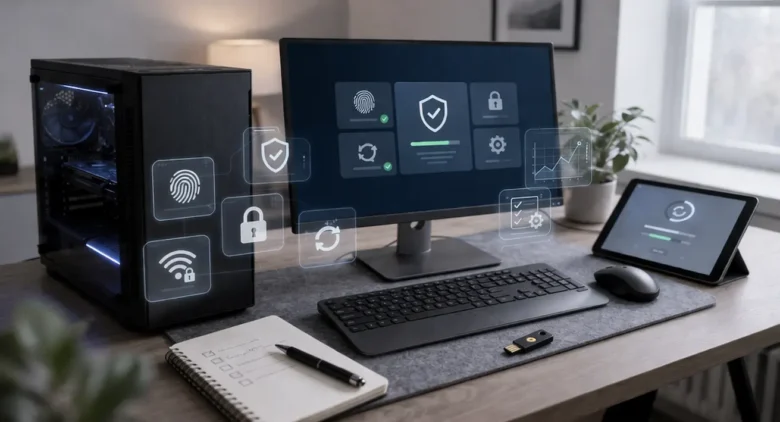
Starting Fresh With a Security-First Mindset
Buying a new PC always feels exciting. Everything is quick, clean, and free from clutter. But that “fresh start” also means the system is vulnerable if security isn’t configured properly from the beginning. Many devices come with default settings that prioritize convenience over protection.
In my experience, setting up security features immediately after purchasing a new PC is one of the most important steps in the entire setup process. Instead of treating security as something to “add later,” I treat it as the foundation of my system. This mindset helps prevent data loss, unauthorized access, and long-term vulnerabilities.
Updating the Operating System Before Anything Else
The first thing I always do is check for system updates. A brand-new PC often doesn’t come fully updated, and those updates usually contain critical security patches.
On systems running software like Windows 11, updates frequently include fixes for vulnerabilities that could otherwise be exploited. Similarly, systems built by Microsoft continuously release patches to improve both performance and security.
My routine includes:
- Connecting to a secure internet network
- Running full system updates immediately
- Restarting the system to complete installations
- Enabling automatic updates for future patches
This ensures that the system starts its life with the latest protections already in place.
Creating a Strong User Account and Password
The next step is setting up a secure user account. Many users make the mistake of using simple or reused passwords, which can compromise the entire system.
I follow these principles:
- Use a long, unique password (12–16+ characters)
- Combine uppercase, lowercase, numbers, and symbols
- Avoid personal information like names or birthdays
- Never reuse passwords from other accounts
If possible, I also use a password manager to generate and store complex passwords securely. Additionally, I avoid using a shared administrator account for daily tasks. Instead, I create a standard user account and reserve admin privileges for system changes.
Enabling Built-In Security Tools
Modern operating systems come with built-in security tools that provide strong baseline protection. On Windows, this includes Windows Security (Microsoft Defender), which offers antivirus, firewall, and threat protection.
I make sure to:
- Enable real-time protection
- Turn on cloud-delivered protection
- Activate automatic sample submission
- Run an initial full system scan
These built-in tools are often sufficient for most users if properly configured and kept updated. They provide continuous monitoring without requiring third-party installations.
Configuring Firewall Settings Properly
A firewall acts as a barrier between your PC and external networks, controlling incoming and outgoing traffic. It’s a critical component of system security.
I ensure that:
- The firewall is enabled for all network profiles (public, private, domain)
- Unnecessary inbound connections are blocked
- Only trusted applications are allowed through
- Notifications are enabled for suspicious activity
For example, if an unknown program tries to access the internet, the firewall will alert me. This gives me control over what communicates with the network and helps prevent unauthorized access.
Installing Only Trusted Software
One of the biggest risks to a new PC is installing software from unverified sources. I always download software from official websites or trusted platforms.
For instance, productivity tools like Google Chrome or development tools should always be obtained directly from their official providers rather than third-party download sites.
My rules include:
- Avoid cracked or pirated software
- Verify publisher authenticity
- Read reviews before installing unfamiliar tools
- Check digital signatures when available
This reduces the risk of malware disguised as legitimate software.
Setting Up Antivirus and Malware Protection
Although built-in security tools are often strong, I still ensure that antivirus protection is properly configured and active.
I typically:
- Keep real-time scanning enabled
- Schedule periodic full system scans
- Update virus definitions regularly
- Avoid running multiple antivirus programs simultaneously
Running more than one antivirus can cause conflicts and slow down the system. Instead, I rely on one trusted solution combined with safe usage habits.
Configuring User Account Control (UAC)
User Account Control (UAC) helps prevent unauthorized changes to the system by prompting for permission when administrative actions are attempted.
I set UAC to a moderate or high level so that:
- Any system-level changes require confirmation
- Unauthorized programs cannot silently modify settings
- I stay aware of potentially risky actions
While some users find UAC prompts annoying, they serve as an important safeguard against malicious software attempting to make hidden changes.
Enabling Disk Encryption for Data Protection
Disk encryption ensures that data stored on the PC remains protected even if the device is lost or stolen.
On Windows devices, features like BitLocker provide full-disk encryption. When enabled, data is automatically encrypted and can only be accessed with the correct credentials or recovery key.
I make sure to:
- Enable encryption on the primary drive
- Save the recovery key in a secure location
- Avoid storing the recovery key on the same device
This step is especially important for laptops, where physical theft is more likely.
Setting Up Secure Login Options
Beyond passwords, modern PCs support additional authentication methods such as biometrics and PINs.
I usually configure:
- A strong password as the primary login
- A PIN for faster access
- Fingerprint or facial recognition if available
These methods not only improve convenience but also enhance security. For example, biometric authentication ensures that only authorized users can unlock the device without relying solely on passwords.
Managing Startup Programs and Background Services
New PCs often come with pre-installed software that runs in the background. Some of these programs may not be necessary and could affect both performance and security.
I review startup applications and the following:
- Disable unnecessary programs from launching at startup
- Remove unwanted pre-installed apps (bloatware)
- Keep only essential system and security services enabled
Reducing background processes not only improves speed but also minimizes potential entry points for vulnerabilities.
Configuring Browser Security Settings
Web browsers are one of the most frequently used applications and also a common target for attacks. I take time to secure browser settings immediately after setup.
For browsers like Google Chrome, I enable:
- Safe browsing protections
- Pop-up and redirect blocking
- Automatic updates
- Privacy controls for cookies and tracking
I also avoid installing unnecessary browser extensions, as some extensions can collect data or introduce vulnerabilities if not carefully vetted.
Setting Up Secure Wi-Fi and Network Connections
Network security plays a key role in protecting a PC. I ensure that my home Wi-Fi network is properly secured with:
- WPA2 or WPA3 encryption
- A strong router password
- Disabled WPS (if not needed)
- Updated router firmware
I also avoid connecting to unsecured public Wi-Fi networks without protection. If necessary, I use a trusted VPN to encrypt my internet traffic and protect sensitive data.
Creating Regular Backup Systems
No security setup is complete without a backup strategy. Backups ensure that even if something goes wrong—such as malware infection or hardware failure—data can be restored.
I use a combination of the following:
- Cloud backups (automatic syncing of important files)
- External hard drives for local backups
- Scheduled backup routines
This redundancy ensures that important files are never permanently lost, even in worst-case scenarios.
Configuring Privacy Settings for Data Protection
Modern operating systems collect certain data to improve user experience. While some of this is useful, I prefer to review and adjust privacy settings to limit unnecessary data sharing.
I typically:
- Disable optional diagnostic data sharing
- Review app permissions for camera, microphone, and location
- Turn off personalized ads where possible
- Limit background data collection
This helps maintain better control over personal information stored and transmitted by the system.
Keeping Software and Drivers Updated
In addition to operating system updates, I also ensure that drivers and installed applications are kept up to date.
Outdated drivers can create vulnerabilities or cause system instability. I check for updates related to:
- Graphics drivers
- Network adapters
- Audio devices
- Chipset and motherboard firmware
Many manufacturers provide official update tools or websites where the latest drivers can be downloaded safely.
Monitoring System Activity Regularly
After completing the initial setup, I don’t stop there. I periodically monitor system activity to ensure everything continues to run securely.
This includes:
- Checking Task Manager for unusual processes
- Reviewing system performance
- Monitoring network usage
- Scanning for malware periodically
If something looks unusual—such as unknown processes consuming resources—I investigate immediately.
Establishing Safe Usage Habits
Security is not only about configuration—it’s also about behavior. Even a well-secured system can be compromised through unsafe habits.
I follow practices such as the following:
- Avoiding suspicious email attachments
- Not clicking unknown links
- Downloading files only from trusted sources
- Being cautious with USB drives from unknown origins
These habits complement technical security measures and significantly reduce risk.
Conclusion
Setting up security features after buying a new PC is an essential step that should never be overlooked. From updating the operating system and enabling built-in protections to configuring firewalls, encryption, and secure login methods, each step contributes to building a strong defense against potential threats.
In my experience, taking the time to properly secure a new PC from the beginning saves time, prevents issues, and provides long-term peace of mind. By combining system settings, trusted software, regular updates, and safe usage habits, you can create a secure computing environment that remains reliable and protected over time.
FAQs
1. What is the first thing I should do after buying a new PC?
The first step is to update the operating system to ensure all security patches are installed before installing additional software.
2. Do I need third-party antivirus software on a new PC?
Not always. Built-in tools like Microsoft Defender are often sufficient if properly configured, but additional software can be used if needed.
3. Is disk encryption necessary for home users?
Yes, especially for laptops. Encryption protects your data in case the device is lost or stolen.
4. How often should I update my PC?
It’s best to enable automatic updates and check manually at least once a week to ensure everything stays current.
5. What is the most overlooked security step when setting up a PC? Many users overlook enabling firewall settings and reviewing app permissions, both of which are critical for maintaining system security.